
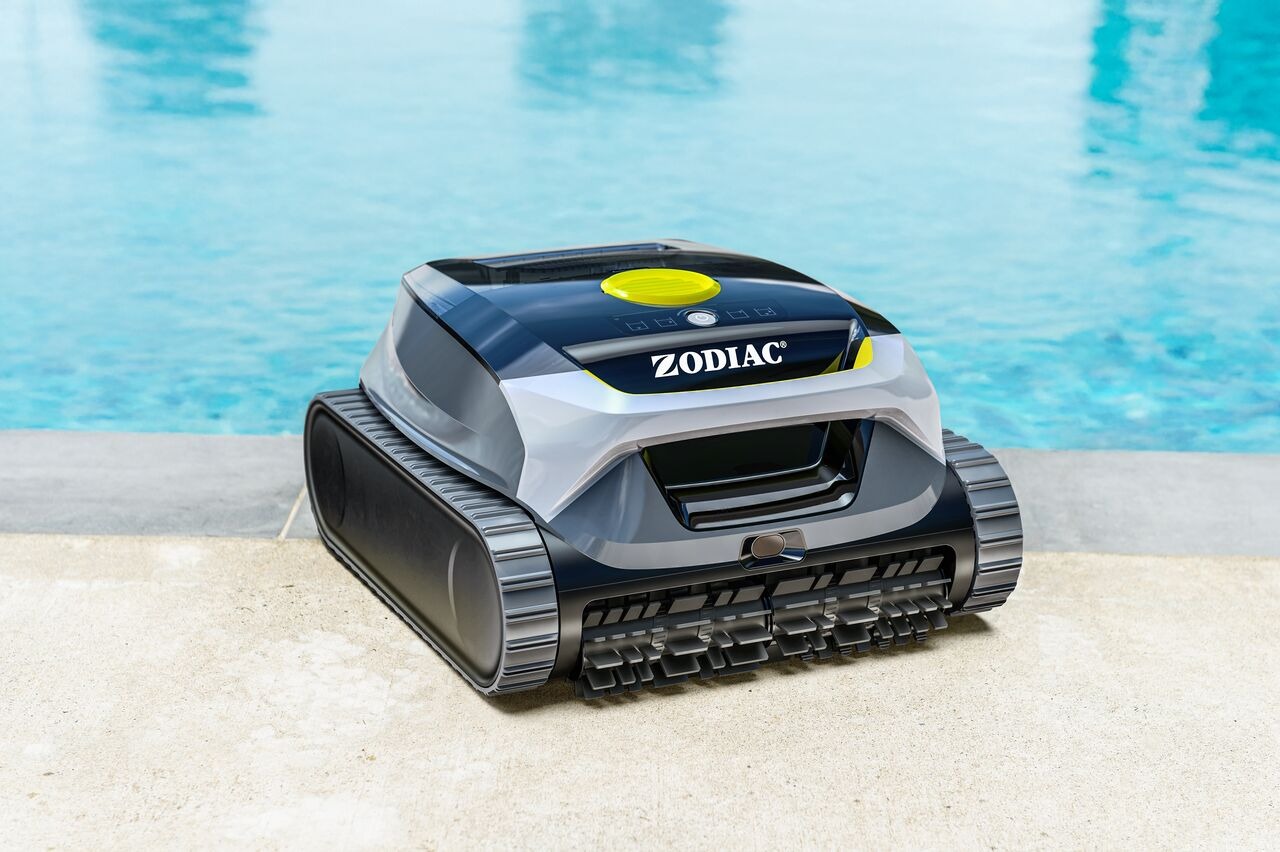
This is the fastest and easiest way to connect your robot.
Before you start:
Make sure the robot is fully charged
Turn on Bluetooth and Wi-Fi on your smartphone
Have your Wi-Fi password ready
Download and open the Fluidra Pool App
Create or log in to your account
Step 1 – Turn on the robot
Power ON the cleaner.
The robot will automatically enter network setup mode.
The Wi-Fi LED will blink green.
The pump motor will run for a few minutes while the robot performs internal checks.
Step 2 – Scan the QR Code
Open the robot cover.
Remove the filter canister.
Locate the QR code inside the robot.
In the app, tap “Add Equipment”.
Select “QR Code”.
Scan the QR code.
Follow the instructions in the app.
The robot will connect via Bluetooth automatically.
Step 3 – Connect to Wi-Fi
Select your home Wi-Fi network.
Enter your Wi-Fi password.
Name your robot.
That’s it — your Freedom Lite is ready to use 🎉
🔁 Manual Pairing (Cloud ID Method)
Use this method if:
The QR code is damaged
The QR code cannot be scanned
You were instructed to do so by Customer Support
Step 1 – Prepare the robot
Turn ON the robot.
It will enter network setup mode (Wi-Fi LED blinking green).
Open the cover and remove the filter.
Step 2 – Enter Cloud ID & Access Code
In the app, tap “Add Equipment”.
Select your robot model manually.
Enter the Cloud ID and Access Code (located below the QR code inside the robot).
Follow the app instructions.
Step 3 – Connect to Wi-Fi
Select your Wi-Fi network.
Enter the password.
Name your robot.
📌 Important Notes
Bluetooth is always active on the robot.
You do NOT need to press any Bluetooth button.
The QR code is unique to each robot.
The QR code is located inside the robot, behind the filter canister.
The robot must be close to your phone during pairing.
❓ Still not working?
Make sure you are using a 2.4 GHz Wi-Fi network
Move closer to your Wi-Fi router
Restart the robot and try again
Restart the app