
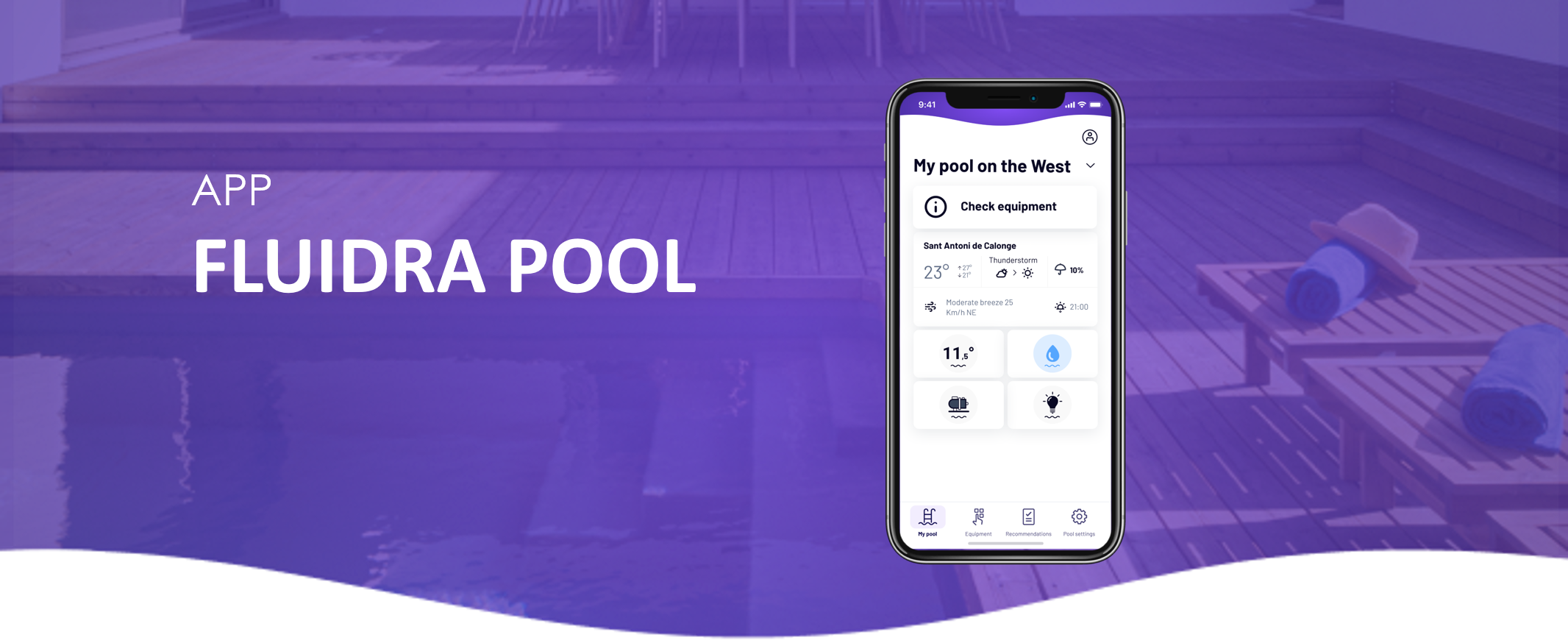
You can connect compatible pool equipment to the Fluidra Pool app to monitor and control it remotely.
Follow the steps below to add your device.
Before you start
Make sure the following conditions are met:
• Your equipment is compatible with the Fluidra Pool app
• The device is powered ON
• Bluetooth is enabled on your phone
• You are close to the equipment during setup
• Your Wi-Fi network is 2.4 GHz (5 GHz networks are not supported)
Step-by-step connection process
Open the Fluidra Pool app
Tap Add Equipment
Scan the QR code on your device
(usually located on the equipment label)
The app will detect the device using Bluetooth
Select your Wi-Fi network and enter the password
Wait a few moments while the device connects
Once the process is complete, your equipment will appear in the app.
During pairing
• Keep your phone close to the device
• Do not close the app during setup
• Make sure your internet connection is stable
If the device is not detected
Check the following:
• Bluetooth is enabled on your phone
• The device is powered on
• You are close enough to the equipment
• The QR code was scanned correctly
You can also restart the device and try the setup again.
Device-specific setup guides
Some equipment may require additional setup steps.
For detailed instructions, see the guides for your specific device: