
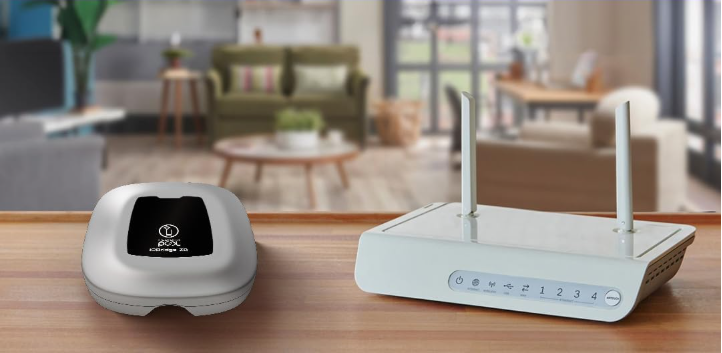
This guide walks you through how to pair your Command Connect cabinet with the iQBridge ZB using the Fluidra Pool® app.
Compatibility
Only works with Zigbee-enabled Command Connect models (e.g., product codes: 75803, 75804, 75805, 75806)
Ensure device is within 10 meters of the iQBridge ZB for optimal signal
Requires iQBridge ZB to be powered and already added in the app
Pairing Steps
Open the Fluidra Pool app
Go to: Settings > Devices > iQBridge ZB
Tap “Pair Device” and select Command Connect
The iQBridge ZB will enter pairing mode (LED blinks green)
Within 60 seconds, the Command Connect will respond
Once connected, the iQBridge ZB LED will go solid green
The app will confirm successful pairing
LED Behavior (iQBridge ZB)
| LED Status | Meaning |
| Blinking Green | Pairing mode active |
| Solid Green | Device successfully paired |
| Red or Off | Pairing failed – retry |
Troubleshooting
Ensure the Command Connect is powered on and in Zigbee range
Check the model supports Zigbee (ZB version required)
Retry pairing if no response within 60 seconds
Do not attempt to pair through iQBridge RS (Bluetooth/Wi-Fi)
Additional Info
iQBridge ZB is Zigbee-only — it doesn’t use Wi-Fi or Bluetooth for slave device pairing
For hardware/wiring issues, contact your installer directly
✅ Supports smart control via app once connected